Do I need an Apple Watch to use this app?
Without an Apple Watch, you won't be able to use the app's core features, such as recording match heart rate, speed curves, and running heatmaps. On iPhone alone, you can only browse training courses and watch video demonstrations. Therefore, we highly recommend using this app with both iPhone and Apple Watch.
How do I add a training plan?
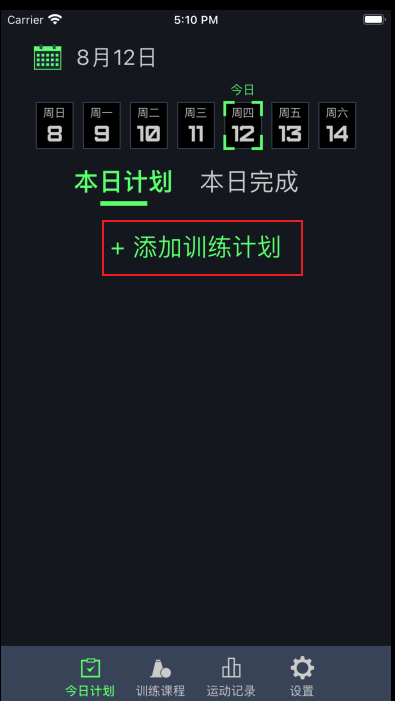
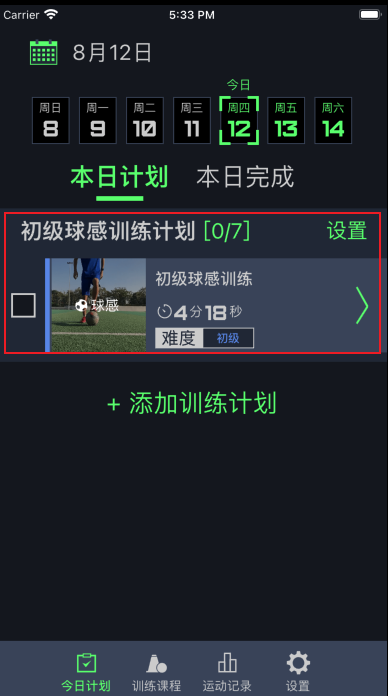
- On the 'Today's Plan' page, select the 'Today' tab and tap '+ Add Training Plan'.
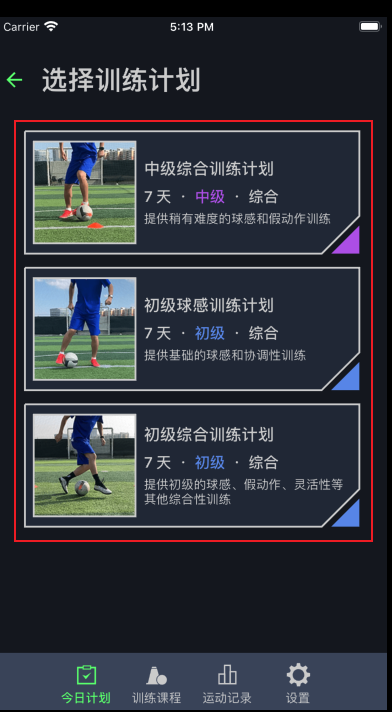
- Choose a training plan from the list.
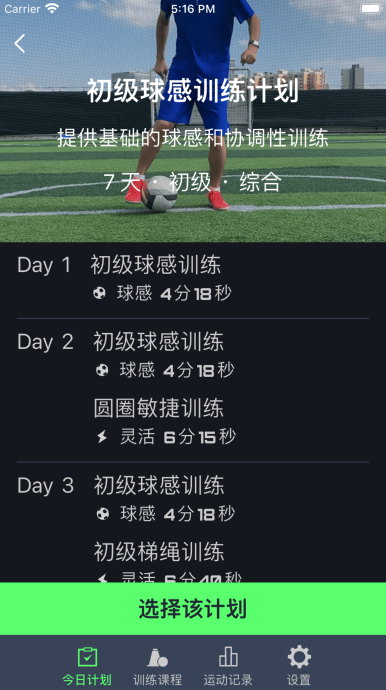
- Tap 'Select This Plan' in the preview page.
- Select the days you want to train on the calendar, then tap 'Done'. Today's required training sessions will appear under your plan tab.
How do I add a new pitch?
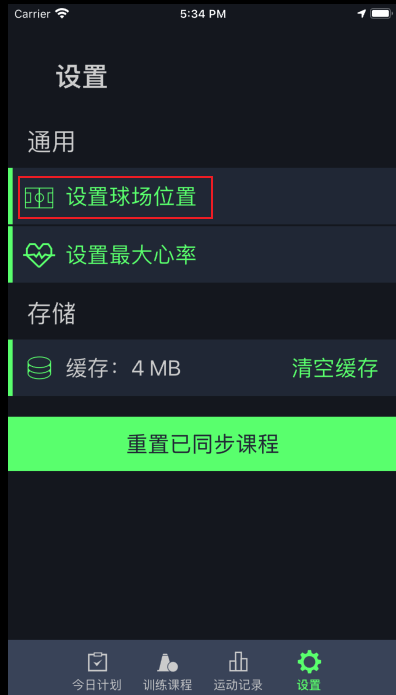
- Go to Settings and tap 'Set Pitch Location'.
- Tap the '+' button in the top right corner of the pitch list.
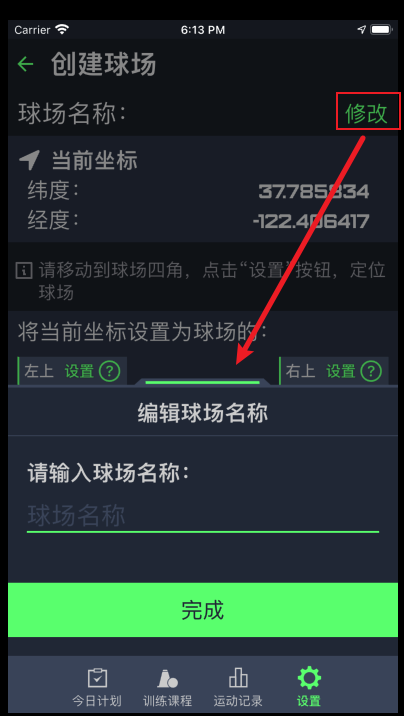
- Enter a name for the new pitch.
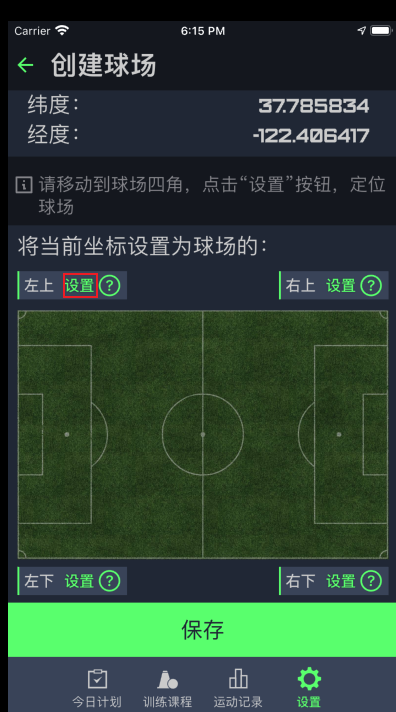
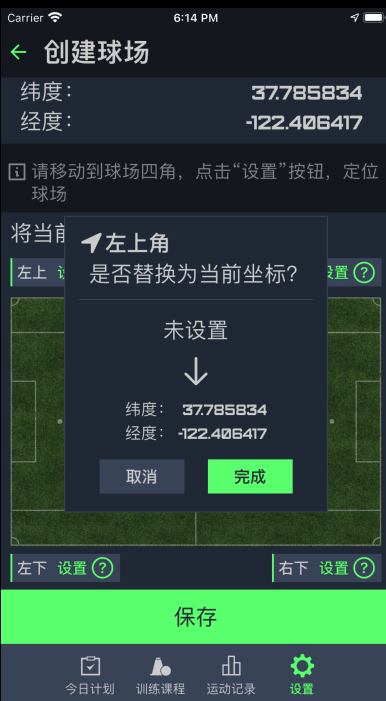
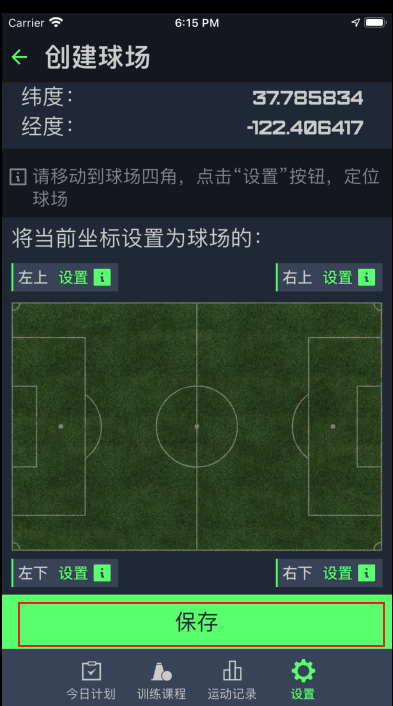
- Walk to the 4 corners of the real pitch with your iPhone, and tap the 'Set' button for each corner to record the GPS coordinates.
- Tap 'Save' at the bottom once all four corners are recorded.

Why is there no 'Running Heatmap' in my workout data?
- Usually, this happens because you haven't assigned a pitch to the workout.
- First, make sure you have added the pitch in Settings.
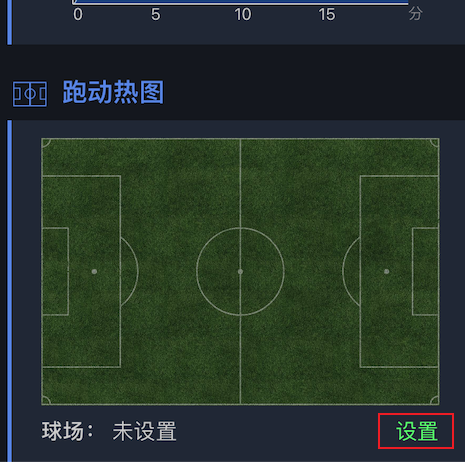
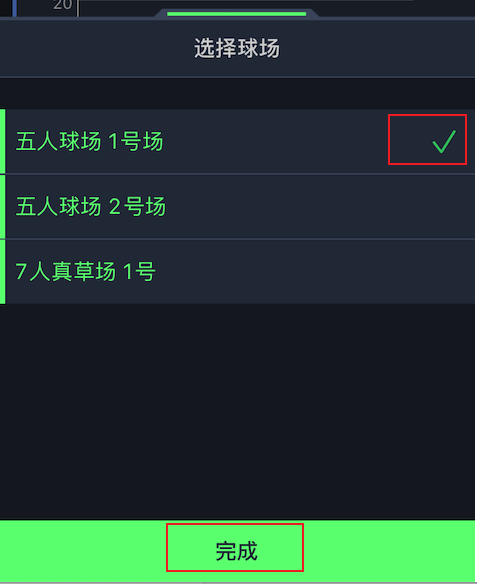
- Scroll to the bottom of your workout details, find the 'Running Heatmap' section, tap and select the corresponding pitch from the list. The heatmap will generate instantly.
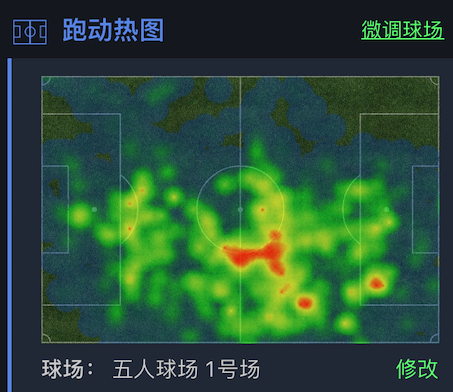
How and why do I fine-tune a pitch?
Why: Due to GPS inaccuracy on mobile devices, pitch boundaries might shift slightly. Fine-tuning aligns the coordinates with your actual running path.
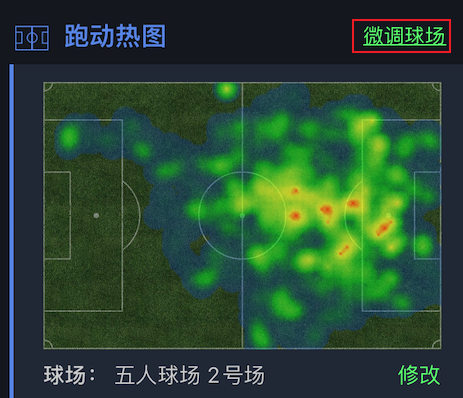
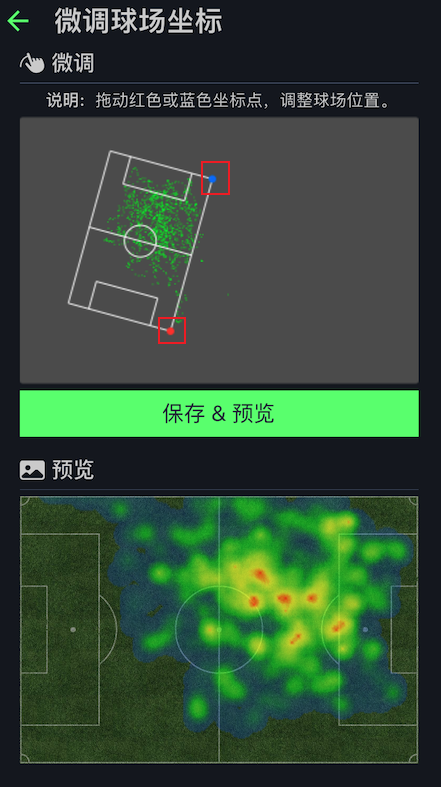
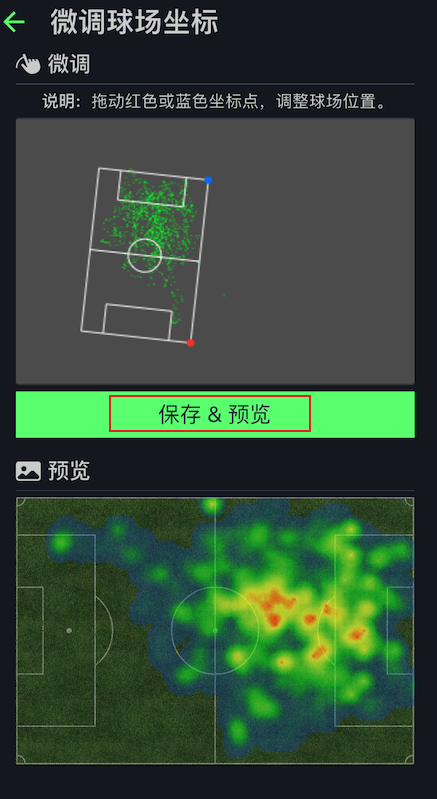
How: On the workout detail page, tap 'Fine-tune Pitch' next to the Running Heatmap title. Drag the red and blue markers on the map to adjust boundaries, then tap 'Save & Preview' to update the heatmap.
How do I set my maximum heart rate?
Why: Maximizing heart rate stats helps categorize your pulse into zones (Aerobic, Anaerobic, Extreme), allowing you to review your workout intensity.
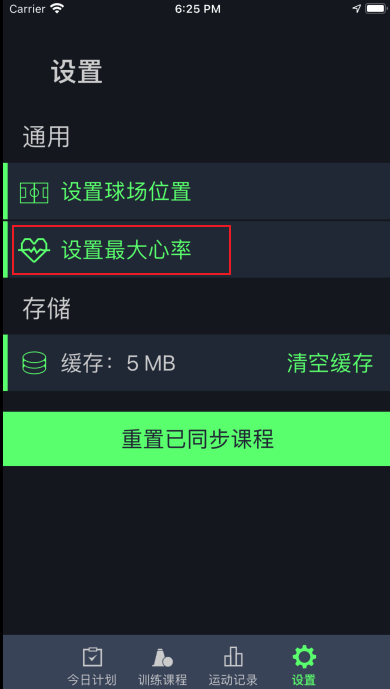
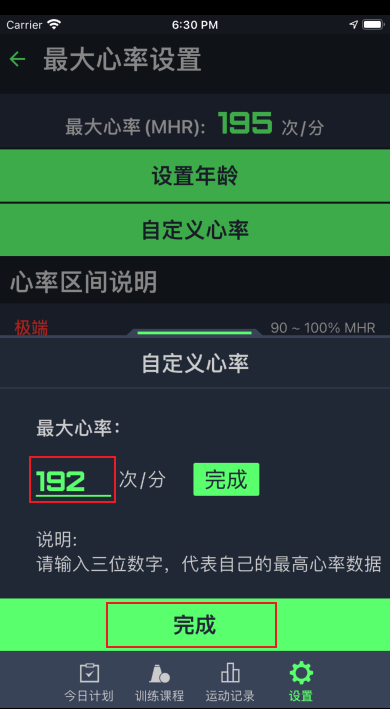
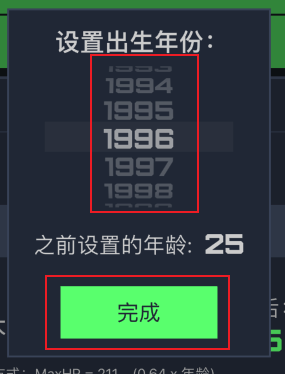
Method 1 (By Age): In Settings, tap 'Set Max Heart Rate'. Tap 'Set Age', select your birth year, and the app will estimate: Max Heart Rate = 211 - (0.64 × Age).
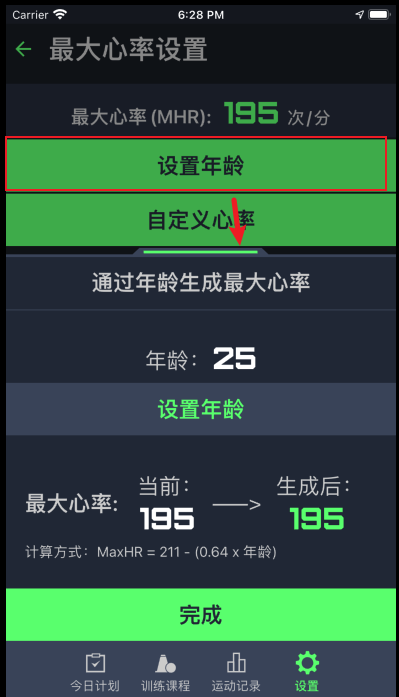
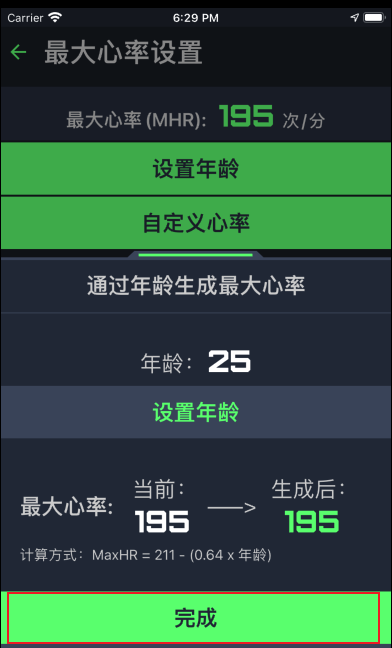
Method 2 (Custom): If you know your exact maximum heart rate, tap 'Custom Heart Rate' and enter the value directly.